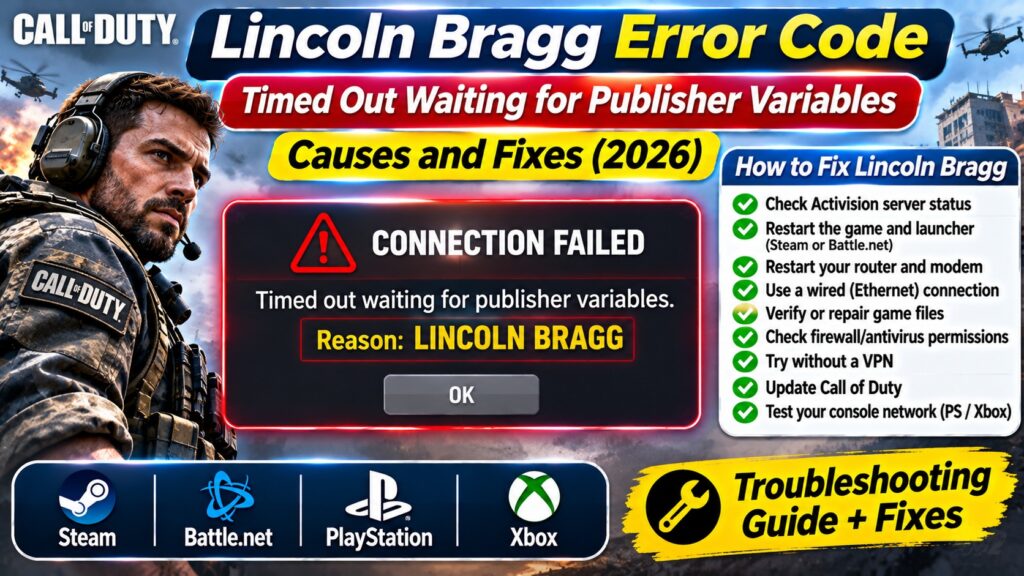

Players have reported the exact message “Connection Failed — Timed out waiting for publisher variables. Reason: Lincoln Bragg”, including on Steam.
The error may be caused by an Activision service interruption, a platform connection problem or a local network issue. Activision has not published a definitive explanation for this specific named error.
Quick Answer: How Do You Fix the Lincoln Bragg Error?
The Lincoln Bragg error code appears when Call of Duty fails to complete a startup connection and displays the message “Timed out waiting for publisher variables.”
First, check the official Activision Online Services status page. If a service interruption is reported, wait for restoration.
If the servers appear operational, close Call of Duty completely, restart Steam or Battle.net, reboot your router and try again. On consoles, restart the system and test its internet connection.
If the problem continues, verify the game installation, check your firewall and try a wired connection. No single fix is guaranteed because the error can have several causes.
What Does Lincoln Bragg Mean in Call of Duty?
Lincoln Bragg is a named connection error reported by Call of Duty players.
The error typically appears while the game is connecting to online services or loading configuration information required to continue.
CONNECTION FAILED
Timed out waiting for publisher variables
Reason: LINCOLN BRAGG
The wording suggests that the game did not receive the expected publisher configuration response within the allowed time.
However, Activision has not publicly documented the exact internal meaning of the Lincoln Bragg label.
Therefore, the message should be treated as a connection or startup configuration timeout rather than proof of one specific technical failure.
Why Does the Lincoln Bragg Error Happen?
Several conditions can interrupt the connection process.
| Possible Cause | What Happens | Recommended Action |
|---|---|---|
| Activision server interruption | Game configuration or login services may not respond. | Check official service status. |
| Steam or Battle.net problem | The platform session may fail to connect correctly. | Restart the launcher. |
| Unstable internet | Packets may be lost or delayed. | Restart the router and test Ethernet. |
| Firewall or security software | Required network communication may be blocked. | Review security permissions. |
| Incomplete update | Game files may be outdated or damaged. | Verify or repair the installation. |
| VPN or network routing issue | Traffic may take an unreliable route. | Test without the VPN. |
| Platform service interruption | Steam, Battle.net, PSN or Xbox services may be affected. | Check platform status. |
These are troubleshooting possibilities, not confirmed root causes for every Lincoln Bragg incident.
Also Read : Best Enterprise Cloud Infrastructure Migration Tools in 2026-27
Fix 1: Check Activision Server Status
Checking server status should be your first step.
When Activision services are experiencing problems, restarting the game repeatedly may not help.
- Open Activision Online Services.
- Select the Call of Duty game you are trying to launch.
- Review the displayed status and any notices.
- Check the status of your gaming platform.
- If an outage is reported, wait for an official update.
If the game service and platform network are both operational, continue with local troubleshooting.
Fix 2: Restart Call of Duty and Your Game Launcher
A temporary login or launcher session problem can sometimes be cleared by restarting the affected applications.
For Steam
- Exit Call of Duty.
- Close Steam completely using Steam > Exit.
- Wait a short time.
- Launch Steam again.
- Check for pending updates.
- Start Call of Duty.
For Battle.net
- Close Call of Duty.
- Exit the Battle.net desktop application.
- Reopen Battle.net.
- Check for a pending game update.
- Launch the game again.
Restarting the launcher is a low-risk first step that does not remove saved game progress.
Fix 3: Restart Your Router and Modem
Activision recommends restarting network equipment when troubleshooting online connectivity.
- Close the game.
- Turn off or restart your router using its normal procedure.
- Wait until your internet connection has fully returned.
- Restart your PC or console if necessary.
- Open Call of Duty and try connecting again.
Do not factory-reset your router. A normal restart is sufficient for this test.
If several devices are unable to access online services, contact your internet service provider.
Fix 4: Use a Wired Ethernet Connection
Activision recommends Ethernet connections for more consistent online gameplay.
Wi-Fi connections can experience interference, packet loss and fluctuating latency, especially when multiple devices share the network.
If possible:
- Connect your PC or console directly to the router.
- Pause large downloads.
- Close unnecessary streaming applications.
- Test the connection again.
A wired connection cannot fix an Activision server outage, but it can help rule out wireless instability.
Fix 5: Verify Call of Duty Game Files on Steam
Missing or corrupted local files can interfere with game startup.
To verify files through Steam:
- Open Steam.
- Go to Library.
- Right-click Call of Duty.
- Select Properties.
- Open Installed Files.
- Select Verify integrity of game files.
- Wait for Steam to finish.
- Restart the game.
Steam may download replacement files if it detects problems.
Verification does not guarantee a solution to Lincoln Bragg, particularly if the issue is server-side.
Fix 6: Repair the Game Through Battle.net
Battle.net provides a Scan and Repair feature for supported games.
- Open the Battle.net desktop application.
- Select Call of Duty.
- Open the options menu beside the Play button.
- Select Scan and Repair.
- Start the scan.
- Allow the process to finish.
- Launch Call of Duty again.
Do not interrupt the repair process or turn off your computer while files are being checked.
Fix 7: Check Firewall and Antivirus Permissions
Security software may occasionally interfere with game or launcher network access.
On Windows:
- Open Windows Security.
- Select Firewall & network protection.
- Choose Allow an app through firewall.
- Review the permissions for Call of Duty and your launcher.
- Allow the appropriate applications through the firewall if they are blocked.
- Restart the launcher and test again.
Use the normal application-allowlist features rather than turning off the firewall completely.
If your computer is managed by an employer or school, contact the network administrator before making changes.
Fix 8: Test Without a VPN
Some VPN connections can introduce additional latency or routing problems.
If you normally use a VPN, disconnect it temporarily and test the game through your regular internet connection.
If the error disappears, review the VPN configuration or contact the VPN provider.
Do not use unofficial VPN services that request your Activision credentials.
Fix 9: Troubleshoot PlayStation and Xbox Connections
Console players should first confirm that their console can connect to the internet and its platform services.
PlayStation
- Open Settings.
- Select Network.
- Select Test Internet Connection.
- Review the results.
- Restart the console and retry the game.
Xbox
- Press the Xbox button.
- Open Profile & system.
- Select Settings.
- Go to General > Network settings.
- Select Test network connection.
- Follow any recommended steps.
Activision’s connection guides recommend checking the relevant platform’s network status if login problems continue.
Fix 10: Try a Different Internet Connection
Testing another connection can help identify whether your home network or ISP is involved.
For example, you may temporarily test a PC using a trusted mobile hotspot, provided your mobile data plan allows it.
If Call of Duty works on another connection but consistently fails on your normal network, investigate router settings, ISP routing or local security restrictions.
If the error occurs on both connections, that result does not prove a server outage, but it makes a single home-network problem less likely.
Fix 11: Check for Call of Duty Updates
After a game update, a mismatch between installed files and required online services can sometimes interfere with startup.
Check Steam, Battle.net or your console’s game-management menu for pending updates.
Install the update completely before attempting another connection.
If the error started immediately after a patch and other players report the same problem, monitor official Activision announcements.
Fix 12: Contact Activision Support
If the game remains inaccessible after server checks and basic troubleshooting, use the official Activision support website.
Provide:
- Your Call of Duty title.
- Your gaming platform.
- The exact Lincoln Bragg error message.
- When the problem started.
- Whether it happens on another internet connection.
- Any troubleshooting already completed.
Official support: Activision Support Options.
Is Lincoln Bragg a Server Error or an Internet Problem?
It can be difficult to distinguish the two without additional evidence.
| What You Observe | What It Suggests |
|---|---|
| Activision reports an outage. | A service-side problem is likely. |
| Many players report the same error simultaneously. | A broader service issue is possible. |
| Only one PC is affected. | Check launcher, installation and local settings. |
| Other devices also lose internet access. | Investigate the local network or ISP. |
| The game works through a different connection. | Local network or ISP routing may be involved. |
| The error starts after an update. | Check patch notices and verify files. |
These observations are diagnostic clues, not definitive proof of the underlying cause.
Does Reinstalling Call of Duty Fix Lincoln Bragg?
Reinstalling the game is not the recommended first step.
Call of Duty installations can be large, and a full reinstall consumes considerable time and bandwidth.
If the problem is caused by unavailable publisher services, reinstalling will not restore those services.
First try server checks, launcher restarts, network troubleshooting and file verification.
Consider reinstalling only when there is evidence of a persistent local installation problem and simpler repair methods have failed.
Can Changing DNS Fix Lincoln Bragg?
Changing DNS servers may help in some situations where domain-name resolution is failing.
However, there is no official evidence that a DNS change specifically resolves Lincoln Bragg.
If other websites and services load normally, changing DNS should not be your first troubleshooting step.
Likewise, avoid changing router port-forwarding settings without understanding the security implications.
Frequently Asked Questions
What is Lincoln Bragg error code?
Lincoln Bragg is a Call of Duty connection error associated with the message “Timed out waiting for publisher variables.”
What does timed out waiting for publisher variables mean?
The message indicates that the game did not receive the expected publisher configuration response before a timeout. Activision has not published a detailed technical explanation for this specific error.
Is Lincoln Bragg caused by Call of Duty servers?
A server-side interruption is one possibility, but local network and platform connection problems can also cause startup timeouts.
How do I fix Lincoln Bragg on Steam?
Check Activision service status, restart Steam, verify the game files and test your internet connection.
How do I fix Lincoln Bragg on Battle.net?
Restart Battle.net, check for updates, use Scan and Repair and confirm that your network connection is stable.
Does restarting the router help?
It may help if the problem involves a temporary home-network issue. It will not resolve a confirmed Activision service outage.
Should I reinstall Call of Duty?
Usually not as the first step. Try file verification and connection troubleshooting before considering a reinstall.
Can Lincoln Bragg happen after an update?
Yes. Players have reported the error following game updates, but the timing alone does not establish that the update caused it.
Does the error mean my Activision account is banned?
No. The Lincoln Bragg message does not, by itself, establish an account ban or enforcement action.
How long does the Lincoln Bragg error last?
There is no fixed duration. A temporary service problem may clear when services recover, while a persistent local connection issue may require troubleshooting.
Where can I check Call of Duty server status?
Visit Activision’s official Online Services page and select your game and platform.
What if none of the fixes work?
Contact Activision Support with the exact error message, platform and troubleshooting history.
Official Sources and References
- Activision — Online Services and Server Status
- Activision — Call of Duty Connection Troubleshooting
- Activision — Modern Warfare Connection Guide
- Activision — Official Support Options
- Steam Community — Player Reports of Lincoln Bragg
More Call of Duty Error Fixes
Explore additional gaming error explanations and troubleshooting articles at 1000sciencefairprojects.com/tech.
TL;DR: Lincoln Bragg Error Fix
- Error: Timed out waiting for publisher variables.
- Reason: Lincoln Bragg.
- Game: Call of Duty.
- First step: Check Activision server status.
- PC: Restart Steam or Battle.net and verify files.
- Console: Restart the system and test the network.
- Network: Restart the router and try Ethernet.
- Last resort: Contact Activision Support.
Bottom line: Lincoln Bragg is a connection timeout, not a confirmed indication of corrupted files or an account ban. Start with the official service status before making changes to your device.
Editorial note: Updated November 12, 2026. Troubleshooting guidance is based on Activision’s published connectivity recommendations and publicly reported player experiences. No universal fix has been officially confirmed for the Lincoln Bragg error.



Pingback: Best Payroll Software for Startups (2026-27)