
Error 0x80004005 – Unspecified Error: What It Means and How to Fix It Fast
Error 0x80004005 is one of Windows’ most confusing messages because it tells you something failed, but not exactly why. The good news is that the fix becomes simple once you identify where it appears: Windows Update, File Explorer, ZIP extraction, network sharing, permissions, or an app installer.
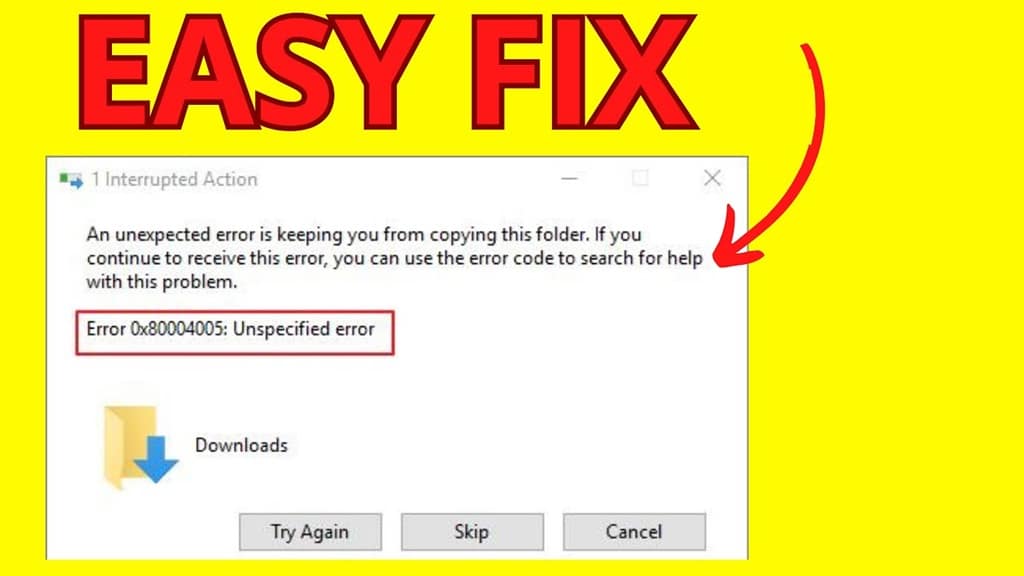
Quick Answer: What Is Error 0x80004005?
Error 0x80004005 – Unspecified Error means Windows could not complete a task and did not provide a more detailed error message. It commonly appears while installing updates, copying files, extracting compressed folders, opening shared network folders, changing permissions, or running older programs.
Why Windows Shows “Unspecified Error” Instead of a Clear Reason
Windows uses error code 0x80004005 when a process fails but the system cannot show a precise cause to the user. Think of it as a broad failure code. The message may look the same, but the reason can be different depending on what you were doing at the time.
For example, if you see it while extracting a ZIP file, the cause may be a blocked file, damaged archive, long file path, or missing permission. If you see it while opening a network folder, the cause may be network discovery, sharing permissions, firewall rules, or saved credentials. That is why the best fix is not one random command. The best fix is to diagnose the error location first.
Also Read : Why Easypaisa Is Not Working Today
Error 0x80004005 Diagnostic Table
Use this table to quickly match your situation with the most likely cause and the first fix to try.
| Where You See the Error | Most Likely Cause | Best First Fix |
|---|---|---|
| Windows Update | Broken update cache, interrupted update, corrupted system files | Run Windows Update troubleshooter, then DISM and SFC |
| Copying or deleting files | Permission issue, locked file, path too long, storage error | Check ownership, free space, file path length and disk health |
| Extracting ZIP/RAR files | Blocked archive, damaged compressed file, password/encryption issue | Unblock the file, re-download it, or use another extraction tool |
| Network shared folder | Wrong credentials, disabled sharing, firewall, SMB/network path issue | Check path, sharing permissions, saved credentials and firewall |
| Software installation | Installer blocked, missing component, antivirus interference | Run installer as administrator and install required runtime files |
How to Fix Error 0x80004005 – Unspecified Error
1. Restart Windows and Repeat the Same Action
This sounds simple, but it is the fastest first step. If a file is locked, an update service is stuck, or File Explorer has frozen in the background, a restart can clear the temporary conflict. Restart the PC, then try the same action again before changing system settings.
2. Fix Error 0x80004005 While Copying, Moving or Deleting Files
If the error appears in File Explorer, the problem is often related to access, file path, storage, or a locked item.
- Right-click the file or folder and choose Properties.
- Open the Security tab and confirm your account has permission.
- Try copying the file to a simple location such as C:\Temp.
- Shorten the file name if the path is very long.
- Make sure the destination drive has enough free space.
- Close apps that may be using the file, then try again.
3. Fix Error 0x80004005 When Extracting a ZIP File
If the error appears while extracting a compressed file, the archive may be blocked, corrupted, encrypted, or stored inside a long folder path.
- Move the ZIP file to your Desktop.
- Right-click the ZIP file and select Properties.
- If you see Unblock, select it and click Apply.
- Extract the file into a short folder path such as C:\Extract.
- If it still fails, download the archive again.
4. Fix Error 0x80004005 in Windows Update
When the error appears during Windows Update, start with the built-in update repair path before deleting files manually.
- Open Settings.
- Go to System → Troubleshoot → Other troubleshooters.
- Run Windows Update.
- Restart your computer.
- Open Settings → Windows Update and check again.
If the update still fails, use the DISM and SFC repair commands in the next section.
5. Fix Error 0x80004005 When Opening a Network Folder
If the message appears while opening a shared folder such as \\ComputerName\Folder or \\192.168.1.10\Share, troubleshoot the network path and permissions.
- Confirm both devices are turned on and connected to the same network.
- Check the exact shared folder path.
- Open Credential Manager and remove old saved credentials for that device.
- Make sure file sharing is enabled on the host computer.
- Temporarily test with firewall disabled only if you know how to turn it back on immediately.
- Confirm the user account has permission to access the shared folder.
6. Temporarily Check Antivirus or Controlled Folder Access
Security software can block installers, compressed files, scripts, or folder changes. Do not permanently disable protection. Instead, check your security app’s history or blocked-items list. If Windows Security is blocking a trusted file, allow it only after confirming the file came from a safe source.
Repair Commands for Error 0x80004005
If error 0x80004005 keeps returning, corrupted Windows system files may be involved. Open Command Prompt as administrator and run these commands in this order.
sfc /scannow
Advanced Fixes If the Error Still Appears
Check the Drive for File System Problems
If the error appears while copying, extracting, or moving files on a hard drive, SSD, USB drive, or external disk, the drive may have file system errors. Open Command Prompt as administrator and run:
Replace C: with the affected drive letter. If Windows says the drive is in use, schedule the scan and restart the computer.
Create a New Local User Account
If the error happens only in your current Windows profile, a damaged user profile may be the cause. Create a new local administrator account, sign in, and test the same file, update, or app action.
Use Clean Boot to Find Conflicting Software
If the error appears after installing a new utility, driver updater, antivirus, backup tool, or compression app, use Clean Boot to start Windows with fewer background services. If the error disappears, re-enable services gradually until you identify the conflicting program.
What Not to Do
| Avoid This | Why It Is Risky | Do This Instead |
|---|---|---|
| Deleting random system folders | Can break Windows or apps | Use troubleshooters and repair commands first |
| Turning off antivirus permanently | Leaves the PC exposed | Check blocked items and allow only trusted files |
| Reinstalling Windows immediately | May waste time and risk data loss | Try permission, update, DISM, SFC and network fixes first |
Best Fix Based on Your Exact Error Situation
If you see 0x80004005 during Windows Update: Run the Windows Update troubleshooter, restart, then run DISM and SFC.
If you see it while copying files: Check permissions, ownership, free space, file path length and drive health.
If you see it while extracting ZIP files: Unblock the archive, move it to a short folder path, re-download it, or use another extraction tool.
If you see it on a network folder: Check sharing permissions, saved credentials, firewall rules and network discovery.
If you see it during app installation: Run the installer as administrator, install missing runtimes, and check whether security software blocked the installer.
FAQs About Error 0x80004005 – Unspecified Error
What does error 0x80004005 – Unspecified Error mean?
It means Windows failed to complete a task but did not return a more specific reason. It can happen during updates, file copying, extraction, network sharing, permissions changes or app installation.
Is error 0x80004005 a virus?
Not usually. The code itself is not a virus. However, if it appears while opening an unknown download or suspicious attachment, scan the file before running it.
Can error 0x80004005 be fixed without reinstalling Windows?
Yes. Most cases can be fixed by checking permissions, repairing Windows Update, unblocking files, fixing network sharing, running DISM and SFC, or checking the affected drive.
Why do I get 0x80004005 when extracting a ZIP file?
The archive may be blocked by Windows, corrupted during download, protected by encryption, stored in a long folder path, or blocked by security software.
Why do I get 0x80004005 on a shared network folder?
The most common causes are wrong credentials, disabled sharing, missing folder permission, firewall rules, SMB issues, or an incorrect network path.
Final Verdict
The fastest way to fix error 0x80004005 – Unspecified Error is to stop treating it as one single problem. First identify where it appears, then apply the matching fix. For most users, the winning combination is: restart Windows, check permissions, run the relevant troubleshooter, then repair system files with DISM and SFC.

Pingback: GitLab Error 503 & GitLab Status: Fast Fix Guide