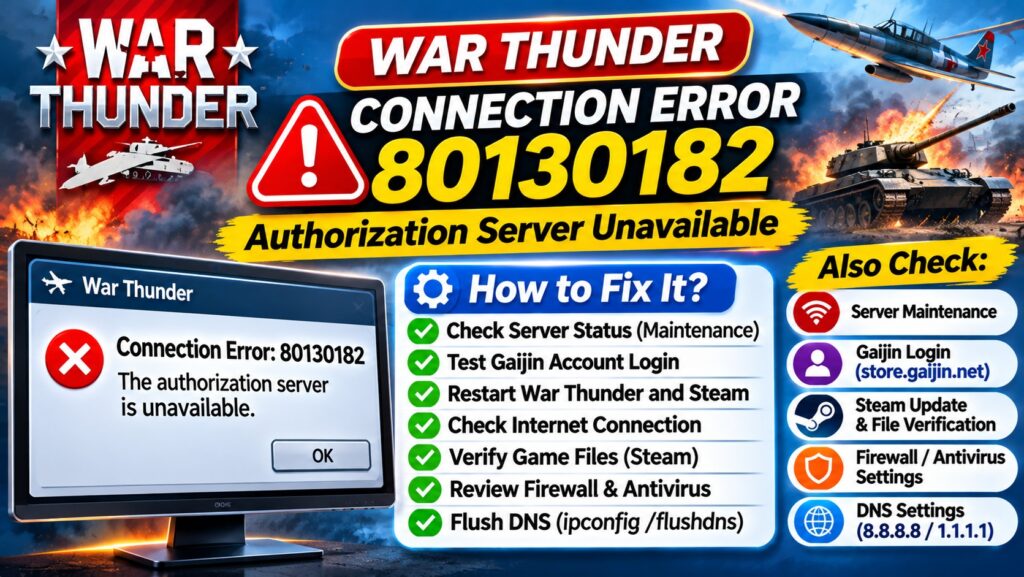

Quick Answer: How to Fix War Thunder Error 80130182
War Thunder Error 80130182 means the game cannot connect to the authorization server.
Try these fixes:
- Check server status:
Look for official Gaijin maintenance announcements. - Test Gaijin login:
Sign in at store.gaijin.net. - Restart the game:
Close War Thunder and Steam completely. - Check your internet:
Restart your router and test another connection. - Verify game files:
Use Steam’s file verification option. - Check firewall and antivirus:
Review any blocked game connections. - Flush DNS:
Run ipconfig /flushdns in Command Prompt.
Important: If Gaijin’s authorization servers are experiencing an outage, you may need to wait for the service to recover.
Are you trying to launch War Thunder but receiving Connection Error: 80130182 — The authorization server is unavailable?
This error prevents players from signing in to the game or completing the connection to Gaijin’s authentication services. It can affect players launching War Thunder through Steam or the standalone game launcher.
Although the message mentions an unavailable authorization server, the underlying problem may involve server maintenance, a network connection, account authentication, DNS configuration, or security software.
Gaijin has published an official troubleshooting guide for this exact error. This article explains those recommendations and provides a practical order for testing them without unnecessarily reinstalling the entire game.
What Is War Thunder Error Code 80130182?
War Thunder error 80130182 is an authentication-related connection error. It appears when the game cannot successfully complete communication with the authorization service.
The error commonly appears as:
Connection Error: 80130182
The authorization server is unavailable.
The authorization service is responsible for handling the authentication process that allows a player to access their account and connect to the game.
However, an unsuccessful connection does not automatically establish that the authorization server itself has failed. The connection can also be interrupted between the player’s device and Gaijin’s services.
Also Read : DigiShakti Portal Student List 2026
Is War Thunder Down Right Now?
If War Thunder suddenly displays error 80130182, checking for official maintenance announcements should be your first action.
Gaijin specifically recommends checking the game’s news section before changing local settings.
Official War Thunder news: https://warthunder.com/en/news
You can also check the official War Thunder forum for announcements and technical discussions.
Previous Server Problems Involving Error 80130182
On May 7, 2026, players reported error 80130182 on the official War Thunder forum. During that incident, an official maintenance announcement acknowledged instability affecting account sign-ins, match connections and purchases.
Gaijin also announced unplanned technical maintenance on August 11, 2026, after server problems temporarily affected game availability.
These incidents demonstrate that the error can occur during server-side disruptions. They do not establish that a new outage is happening on November 17, 2026.
Important: If Gaijin has acknowledged a service disruption, repeatedly reinstalling the game, resetting your router or changing passwords is unlikely to resolve the server-side incident.
Why Does War Thunder Show Error 80130182?
| Possible cause | Typical symptom | Recommended action |
|---|---|---|
| Gaijin server maintenance | Many players cannot log in simultaneously | Check official announcements and wait |
| Account authentication issue | Login fails on both the website and game | Check account access and password recovery |
| Internet connection problem | Game fails on one network | Restart router and test another connection |
| Firewall or antivirus interference | Website works but game cannot connect | Review blocked applications and security logs |
| DNS resolution problem | Game services fail to connect reliably | Flush DNS cache and investigate DNS settings |
| Steam or launcher problem | Error appears when launching through Steam | Restart launcher and check game updates |
| Network filtering or proxy | Connection fails on a managed or filtered network | Check VPN, proxy and network restrictions |
Fix 1: Check Official War Thunder Server Maintenance
Before modifying your computer, verify whether Gaijin has announced a server problem.
- Open the War Thunder official news page.
- Look for announcements about technical maintenance or service instability.
- Check the official forum for recent login-related reports.
- See whether other players are experiencing the same error.
- If an outage has been acknowledged, wait for the official recovery announcement.
Gaijin’s support documentation lists this as the first troubleshooting step for error 80130182.
Fix 2: Test Your Gaijin Account Login
Gaijin recommends checking whether your account can sign in to its website.
- Open store.gaijin.net.
- Try signing in with the account associated with War Thunder.
- If the website login works, your credentials are likely functioning.
- If the website login fails, check whether there is an account authentication issue or a broader service problem.
- If necessary, use Gaijin’s official password recovery process.
Official password recovery: Gaijin Account Password Recovery.
Do not repeatedly change your password if Gaijin has confirmed an authentication-service outage. A server outage cannot be fixed by changing account credentials.
What If the Website Works but War Thunder Does Not?
If you can sign in to the Gaijin website but the game still displays error 80130182, the problem may be specific to the game client, launcher, network path or local security configuration.
Continue with the next troubleshooting steps.
Fix 3: Restart War Thunder, Steam and Your Computer
Restarting the game and its launcher can resolve temporary connection or session problems.
- Close War Thunder completely.
- Exit Steam or the standalone War Thunder launcher.
- Open Windows Task Manager.
- Check for any remaining War Thunder or launcher processes.
- Close the remaining processes normally where possible.
- Restart Windows.
- Launch the game again.
If the problem was caused by a temporary client or launcher state, the connection may succeed after restarting.
Fix 4: Restart Your Router and Test Another Network
An unstable internet connection can interrupt communication with Gaijin’s authentication services.
- Close War Thunder.
- Restart your router or modem.
- Wait until your internet connection is fully restored.
- Test ordinary websites to confirm internet access.
- Launch War Thunder again.
- If possible, test a different trusted internet connection.
For example, if War Thunder works through a mobile hotspot but fails through your home broadband connection, the problem may involve your router, internet service provider, DNS configuration or network filtering.
Testing another network is a diagnostic step, not proof that the original internet provider is responsible.
Fix 5: Check Windows Firewall and Antivirus Settings
Gaijin’s official error 80130182 guidance recommends checking whether antivirus software interferes with the game.
Some security applications may block network communication or interfere with game executables.
How to Check Windows Security
- Open Windows Security.
- Select Firewall & network protection.
- Choose Allow an app through firewall.
- Check whether War Thunder is permitted on the appropriate network profile.
- Review Windows Security protection history for blocked game files.
- If a legitimate War Thunder file was blocked, follow the official Gaijin guidance to restore the required access.
Gaijin also discusses antivirus exclusions in its support article. Add an exclusion only when you have verified the installation directory and understand the security implications.
Do not permanently disable Windows Defender, your firewall or other security protections just to launch the game.
Fix 6: Flush the Windows DNS Cache
Windows stores DNS lookup information to help applications connect to websites and online services.
If cached DNS information is outdated, clearing it may help with certain connection problems.
Steps to Flush DNS on Windows 10 or Windows 11
- Close War Thunder.
- Open the Start menu.
- Search for Command Prompt.
- Open Command Prompt.
- Enter the following command:
ipconfig /flushdns- Press Enter.
- Wait for the DNS resolver cache confirmation.
- Restart War Thunder and try signing in again.
This command clears locally cached DNS records. It does not delete your War Thunder account, game progress or installed game files.
Gaijin includes DNS cache troubleshooting in its official network connection guidance.
Fix 7: Check DNS Server Settings
Gaijin specifically suggests trying different DNS servers when error 80130182 persists despite successful website login.
If your internet provider’s DNS service is experiencing problems, testing another trusted DNS provider may help identify the issue.
| DNS provider | Primary IPv4 | Secondary IPv4 |
|---|---|---|
| Google Public DNS | 8.8.8.8 | 8.8.4.4 |
| Cloudflare DNS | 1.1.1.1 | 1.0.0.1 |
To change DNS settings in Windows 11:
- Open Settings.
- Go to Network & internet.
- Select your active Wi-Fi or Ethernet connection.
- Find DNS server assignment.
- Select Edit.
- Choose Manual and enable IPv4.
- Enter the DNS server addresses you want to test.
- Save the settings.
- Restart the game.
Record your previous DNS settings before making changes so you can restore them if necessary.
Note: Changing DNS does not fix every authorization-server error, especially when Gaijin’s services are unavailable.
Fix 8: Check Steam and Verify War Thunder Game Files
If you launch War Thunder through Steam, check whether Steam and the game are fully updated.
- Close War Thunder.
- Open Steam.
- Go to Library.
- Right-click War Thunder.
- Select Properties.
- Open Installed Files.
- Select Verify integrity of game files.
- Wait for Steam to finish checking the installation.
- Restart Steam and launch the game.
Verification can repair missing or damaged files, although error 80130182 is primarily an authentication-related connection error.
Steam Manual Game Update Workaround
During a December 2025 incident, a moderator on the official War Thunder forum suggested using Steam’s Manual Game Update option under the game’s advanced launch settings.
This workaround may be relevant if the launcher is failing to update correctly. It should not be treated as a guaranteed solution to every authorization-server failure.
See the official forum discussion for the original context.
Fix 9: Check VPN, Proxy and Network Filtering
VPN services, proxy configurations and network filtering applications can sometimes affect online-game connectivity.
If you use any of these services:
- Check whether the connection problem started after changing network settings.
- Temporarily test without a nonessential VPN or proxy, where permitted.
- Review any filtering software that may restrict game traffic.
- Test the game again.
- Restore your previous configuration if the test does not help.
On a school, workplace or managed network, contact the network administrator rather than attempting to bypass established restrictions.
Fix 10: Contact Gaijin Support With Connection Diagnostics
If you can sign in to the Gaijin website, no maintenance is announced, and the error persists across reasonable troubleshooting attempts, contact Gaijin Support.
Official support: support.gaijin.net.
Gaijin recommends collecting diagnostic information using its official network troubleshooting instructions.
Include the following information in your support request:
- The exact error code: 80130182.
- The full error message.
- Your platform and launcher, such as Windows PC and Steam.
- When the error first appeared.
- Whether you can sign in to store.gaijin.net.
- Whether the game works on another network.
- Any relevant diagnostic files requested by Gaijin.
Do not publicly share passwords, account recovery codes, authentication tokens or sensitive personal information.
War Thunder Error 80130182: Which Fix Should You Try?
| Your situation | Recommended action |
|---|---|
| Many players are reporting the same error | Check official maintenance announcements |
| Gaijin website login also fails | Check service status and account access |
| Website login works but the game fails | Check launcher, firewall, DNS and network |
| Error happens only on home Wi-Fi | Restart router and compare another network |
| Error appears only through Steam | Restart Steam and check game updates |
| Connection fails after changing DNS settings | Restore previous DNS settings and retest |
| All troubleshooting steps fail | Contact Gaijin Support with diagnostics |
War Thunder Error 80130182 on Steam vs Standalone Launcher
Both Steam users and standalone launcher users can encounter authentication errors because both must communicate with Gaijin’s game services.
However, the troubleshooting process differs slightly.
| Steam version | Standalone version |
|---|---|
| Restart Steam | Restart the War Thunder launcher |
| Verify Steam game files | Check launcher updates and available file verification options |
| Review Steam launch settings | Review launcher configuration |
| Test Gaijin website login | Test Gaijin website login |
| Check Gaijin server maintenance | Check Gaijin server maintenance |
If both launch methods fail during a confirmed server incident, changing launchers is unlikely to solve the underlying service disruption.
Should You Reinstall War Thunder for Error 80130182?
Reinstalling the entire game should generally be a last resort.
War Thunder requires a substantial download, and reinstalling it will not repair an outage affecting Gaijin’s authorization infrastructure.
Try the following first:
- Check official maintenance notices.
- Test your Gaijin website login.
- Restart the game and launcher.
- Test your network.
- Verify game files.
- Check firewall and DNS settings.
- Contact Gaijin Support if the problem persists.
Only consider reinstalling if there is evidence that the installation itself is damaged or Gaijin Support recommends it.
Frequently Asked Questions
What does War Thunder error 80130182 mean?
It means War Thunder cannot complete the authorization connection required for login. The cause may involve Gaijin’s services, account authentication, local network settings or security software.
How do I fix authorization server unavailable in War Thunder?
Check War Thunder maintenance announcements, test your Gaijin website login, restart the launcher, verify the network connection, review firewall settings and try DNS troubleshooting.
Is War Thunder error 80130182 caused by a server outage?
Sometimes. Gaijin has previously acknowledged service disruptions during which players reported this error. However, the error can also result from local connectivity or authentication problems.
Can War Thunder error 80130182 happen on Steam?
Yes. Steam players have reported the error on the official War Thunder forum. Restarting Steam, checking updates and verifying files are reasonable troubleshooting steps.
Will changing DNS fix error 80130182?
It may help when DNS resolution is contributing to the connection problem. Gaijin includes DNS changes among its suggested troubleshooting options, but this will not resolve a confirmed server-side outage.
Does error 80130182 mean my Gaijin account is banned?
No. The error message alone does not establish that your account has been banned. It indicates an authorization connection failure. Check official account notifications separately if you suspect an enforcement action.
Why can I log in to Gaijin’s website but not War Thunder?
This suggests that your website credentials may be working while the game connection is failing. Investigate the launcher, firewall, DNS configuration and network path, then contact Gaijin Support if necessary.
Can antivirus software cause War Thunder connection error 80130182?
Security software interference is one possibility identified in Gaijin’s official support guidance. Review any blocked game files and follow trusted troubleshooting instructions without unnecessarily weakening your system’s security.
How long does War Thunder authorization server maintenance last?
There is no fixed duration. Maintenance and unexpected service disruptions vary. Check official announcements for the latest recovery information instead of relying on unofficial estimates.
Where can I report War Thunder error 80130182?
Use the official Gaijin Support website and include your error message, platform, launcher, network test results and any requested diagnostics.
Official Sources and References
- Gaijin Support: Error 80130182 — The Authorization Server Is Unavailable
- Gaijin Support: Network Connection Troubleshooting
- Gaijin Support: War Thunder Network Ports
- War Thunder: Official News and Maintenance Announcements
- War Thunder Official Forum: May 2026 Error 80130182 Reports
- War Thunder: August 2026 Unplanned Technical Maintenance
- Gaijin Store: Official Account Login Test
Final Verdict: Best Way to Fix War Thunder Error 80130182
Bottom line: War Thunder connection error 80130182 is an authorization failure, not proof of a ban or a worldwide outage. Start by checking official server announcements and testing your Gaijin website login. If the services are operational, investigate the game launcher, network, firewall and DNS settings. If the error persists, submit a support request with the diagnostic information Gaijin recommends.
Editorial note: This article distinguishes Gaijin’s official troubleshooting instructions from additional general diagnostic suggestions. Historical server incidents are not evidence of a current outage. Last reviewed November 17, 2026.



Pingback: Banking Chanakya 2026: IIBF Inter-Bank Quiz Competition