
You sit down for the big match or the next episode, tap the Sky Go icon, and nothing happens. A spinning wheel, a stubborn black screen, or a polite message saying it cannot play right now. It is one of the most common streaming headaches in the UK, and the reassuring part is that almost every Sky Go problem comes down to a short list of causes you can clear in a couple of minutes.
Quick answer
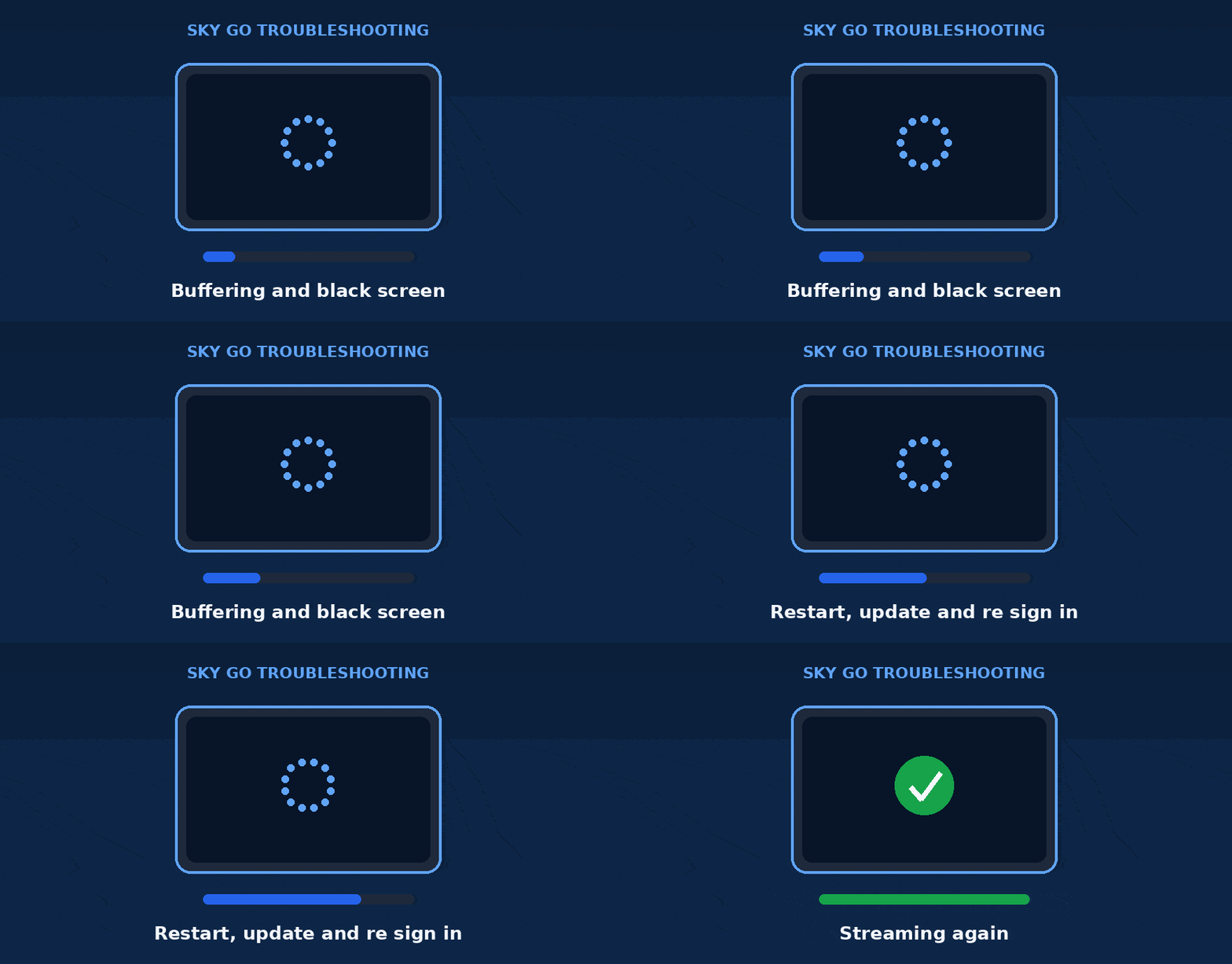
Sky Go usually stops working because of a weak connection, an outdated app, a stale login session, or your account hitting its device or streaming limit. Fix it fast by checking your internet, force closing and reopening the app, installing any update, signing out and back in, and switching off any VPN. If you see a device limit message, remove an old device in your Sky account settings and try again. If it only fails on your home broadband but works on a phone hotspot, the fault is on Sky side, so wait or report it.
Why is the Sky Go app not working?
Sky Go leans on four things at once, a steady connection, an up to date app, a valid sign in session, and your subscription limits. When any one of them slips, the app shows a generic failure rather than the real reason. The table below maps the symptom you see to the most likely cause and the fastest fix.
| Symptom | Most likely cause | Quickest fix |
|---|---|---|
| Buffering or freezing | Slow or unstable internet | Restart router, use 5 Mbps or more for HD |
| Black or blank screen | App glitch or stale cache | Force close, reopen, then reinstall |
| Will not play, error message | Expired session or DRM issue | Sign out and back in, update the app |
| Maximum device message | Device or streaming limit reached | Remove an old device in Sky settings |
| Content unavailable | Region or VPN blocking | Turn off VPN, confirm you are in the UK |
| Works on hotspot, not broadband | Sky server or routing issue | Wait, or report it to Sky |
Quick checks before you troubleshoot
Five minutes of basic checks save you from chasing the wrong fix. Run these first.
- Test your speed. Sky Go needs roughly 2 Mbps for standard definition and at least 5 Mbps for HD. Run a quick speed test on the same network.
- Check for an outage. Look at the Sky status page and the Sky Community before assuming the fault is yours.
- Confirm your region. Sky Go works in the UK, with limited use elsewhere in the EU under travel rules. Outside that, content is blocked by design.
- Update everything. Make sure both the Sky Go app and your phone, tablet or computer are on the latest version.
How to fix the Sky Go app step by step
Work through these groups in order. Most people are back to streaming after the connection and app refresh steps.
1. Sort out your connection
- Restart your router and modem, wait about thirty seconds, then power them back on.
- Move closer to the router, or use a wired connection where you can, to cut out Wi-Fi interference.
- Pause other heavy downloads or streams on the same network that are eating bandwidth.
2. Refresh the app
- Force close Sky Go fully, do not just minimise it, then open it again.
- Install any pending Sky Go update from the App Store, Google Play or the Microsoft Store.
- If it still fails, uninstall and reinstall the app, which clears a corrupted cache in one step.
3. Fix your sign in
- Sign out of Sky Go, close the app, then sign back in with your Sky iD to refresh a stale session.
- Reset your Sky iD password if the sign in loops or keeps sending you back to the start.
- Confirm your Sky package still includes the channels you are trying to watch, since a recent change can remove access.
4. Clear the device or streaming limit
- Go to sky.com, sign in, then open Settings and Manage devices to see what is registered.
- Remove an old or unused device to free a slot, then add the device you want to watch on.
- Remember that watching counts toward your concurrent stream limit, so stop a stream on another device first.
5. Browser and DRM fixes on a computer
- Update your browser, since Sky Go relies on up to date DRM components to start playback.
- Try a fresh browser profile or a private window, and disable ad blockers and privacy extensions that can block media.
- Turn on hardware acceleration and update your graphics drivers if you see a black screen with sound.
6. Turn off VPN and check security software
- Disable any VPN or proxy, which can place you outside the UK and break the region check.
- Temporarily test with your firewall or antivirus paused, then add an exception for Sky Go if that was the blocker.
Sky Go error messages and what they mean
Sky Go messages are vague on purpose. Here is what the common ones actually point to.
| Message you see | What it really means | What to do |
|---|---|---|
| Blank screen, app will not load | App cache or session is corrupted | Force close, reinstall, sign in fresh |
| Maximum number of devices | You hit the device limit | Remove a device at sky.com |
| Sign in keeps restarting | Sky iD session not completing | Reset password, retry on another network |
| Content not available | Region or rights restriction | Disable VPN, confirm UK location |
| Cannot cast or mirror | Content protection blocks casting | Watch in the app, casting is limited by design |
Error 1034 fix: Cloudflare, iPhone voicemail and MySQL explained (2026)
Sky Go device and streaming limits explained
A surprising share of Sky Go problems are not faults at all, they are limits. You can register several devices, but only stream on a few at once, and the two numbers are easy to confuse.
| Plan | Devices you can register | Streams at the same time |
|---|---|---|
| Sky Go | Up to 6 | 2 |
| Sky Go Extra | Up to 6 | 2 |
| Sky Go Extra with Multiscreen, Glass or Stream Whole Home | Up to 6 | 4 |
Good to know. Sky historically allowed only one device swap per calendar month, which still catches people out. Sky has relaxed this for many accounts, so check what your account allows before assuming you are locked out. Sky Go Extra is a paid add on that also unlocks downloads for offline viewing.
Still not working? Your safety net
If you have checked your connection, refreshed the app, signed in cleanly and cleared any device limit, and Sky Go still will not play, the problem is likely on Sky side. A telltale sign is when the app works on a phone hotspot or a different network but not on your usual broadband, which points to a Sky server or routing issue rather than your device. In that case, check for a reported outage, then contact Sky.
Written and maintained by Anup V, founder of Wings Infotech and editor at Seminarsonly. This guide is based on current Sky Go behaviour and official Sky help guidance, and is reviewed as Sky updates the app and its device rules. Sky Go, Sky Q, Sky Glass and Sky Stream are trademarks of Sky UK and are referenced here for identification only. Last reviewed 26 June 2026.
TLDR
- Most Sky Go failures come from connection, an outdated app, a stale sign in, or a device limit.
- Restart the router, force close and reopen the app, then update or reinstall it.
- Sign out and back in with your Sky iD, and turn off any VPN.
- A maximum devices message means you removed nothing, free a slot at sky.com.
- You can register up to 6 devices but stream on only 2, or 4 with Multiscreen, Glass or Stream Whole Home.
- If it works on a hotspot but not your broadband, the fault is on Sky side, so report it.

Pingback: How to Change the IndiHome WiFi Password (2026 Complete Guide)
Pingback: Tabby Emirates Voucher Email Error: What Happened & What To Do (June 2026)