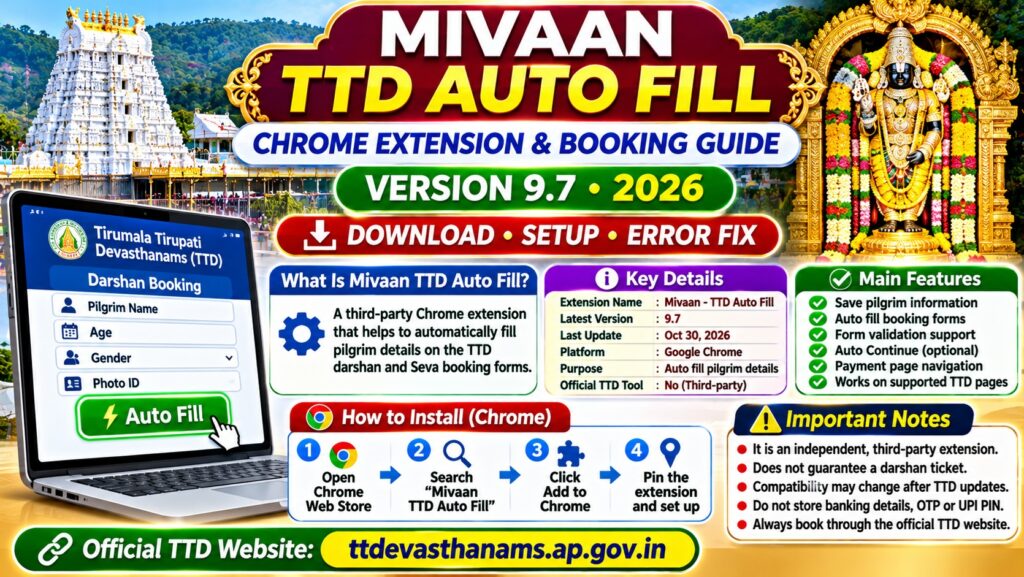

Quick Answer: What Is Mivaan TTD Auto Fill?
Mivaan TTD Auto Fill is a third-party Google Chrome extension designed to reduce repetitive pilgrim data entry while booking Tirumala Tirupati Devasthanams (TTD) darshan and supported Seva tickets online. It allows users to save pilgrim information and automatically populate compatible booking forms.
- Extension name: Mivaan – TTD Auto Fill.
- Latest identified version: 9.7.
- Last identified update: October 30, 2026.
- Recommended browser: Google Chrome on a computer.
- Purpose: Reduce repetitive pilgrim form filling.
- Guaranteed darshan ticket: No.
- Official TTD software: No verified affiliation.
- Official booking website: ttdevasthanams.ap.gov.in.
View Mivaan TTD Auto Fill Chrome Extension
Open Official TTD Darshan Booking Website
Important: Mivaan is an independent browser extension. It cannot guarantee ticket availability or bypass official TTD booking requirements. Review its permissions and privacy practices before entering sensitive information.
Om Namo Venkatesaya!
Booking Tirupati Balaji darshan tickets online can be challenging during popular pilgrimage dates, weekends, festivals and monthly ticket quota releases.
Devotees booking tickets for several family members may need to enter multiple names, ages, identity details and contact information within a limited booking session.
Mivaan TTD Auto Fill is one of several independent browser extensions developed to reduce repetitive form entry. However, devotees should understand how these tools work, what information they access and why ticket confirmation continues to depend on the official TTD booking system.
Mivaan TTD Auto Fill Extension Overview
| Particular | Details |
|---|---|
| Extension name | Mivaan – TTD Auto Fill |
| Platform | Google Chrome browser |
| Extension type | Pilgrim form-filling assistant |
| Latest identified version | 9.7 |
| Latest identified update | October 30, 2026 |
| Initial release | September 2026 |
| Supported services | Compatible TTD Darshan and Seva booking forms |
| Reported data storage | Local browser extension storage |
| Official TTD affiliation | Not verified |
| Ticket availability | Controlled by TTD |
| Payment processing | Official TTD booking and payment system |
| Android APK | No standalone official APK verified |
Mivaan TTD Auto Fill Latest Version 2026
Public browser extension tracking records identify version 9.7 as an update released on October 30, 2026.
The developer describes functionality that assists users with entering previously saved pilgrim information and progressing through supported booking forms.
Also Read : How Are People Playing GTA 6 Already?
The current Chrome Web Store version may change as the developer publishes subsequent updates.
Reported Mivaan Extension Features
- Pilgrim information storage.
- Automatic entry of supported booking fields.
- Reusing previously saved pilgrim profiles.
- Form validation assistance.
- Optional Auto Continue functionality.
- Support for applicable review and payment navigation.
- Compatibility with selected TTD booking services.
These features are based on published extension descriptions and have not been independently tested for every TTD booking category.
Mivaan TTD Auto Fill Download Link
Users searching for the Mivaan extension should use the Google Chrome Web Store rather than downloading unknown browser extension files from Telegram, WhatsApp or third-party websites.
| Service | Link |
|---|---|
| Mivaan TTD Auto Fill extension listing | Chrome Web Store |
| Extension version information | Check Version History |
| Developer privacy policy | Read Privacy Policy |
| Official TTD booking portal | Book TTD Darshan |
| Official TTD information website | Tirumala.org |
If the extension is unavailable in the Chrome Web Store, do not install an unofficial copy merely to complete a darshan booking.
How to Install Mivaan TTD Auto Fill in Google Chrome
Before installation, check whether the current TTD booking rules permit the use of third-party form-filling tools.
Step 1: Open Google Chrome
Launch an updated version of Google Chrome on your desktop or laptop computer.
Step 2: Open Chrome Web Store
Visit Chrome Web Store and search for Mivaan TTD Auto Fill.
Verify that the extension ID matches the intended listing:
obchealiicilgdljkbhpffliebibipcg
Step 3: Review Extension Permissions
Examine the publisher information, recent reviews, privacy policy and requested browser permissions.
Do not proceed if you are uncomfortable with the level of access requested.
Step 4: Select Add to Chrome
If you decide to install the extension after reviewing its permissions, select Add to Chrome and review the confirmation dialog.
Remember that an extension being available in Chrome Web Store does not automatically make it officially approved by TTD.
Step 5: Locate the Extension
Click the puzzle-shaped Extensions icon near the Chrome address bar.
Locate Mivaan TTD Auto Fill and pin it to the browser toolbar if required.
Step 6: Review the Extension Settings
Examine its available settings and understand which information is stored or submitted.
Keep automated submission and payment-navigation features disabled where possible, allowing you to review all booking information manually.
How Does Mivaan TTD Auto Fill Work?
The extension is intended to reuse pilgrim information on supported TTD booking pages instead of requiring users to type the same information repeatedly.
The general workflow described by its developer is:
- Configure pilgrim information within the extension.
- Open the official TTD booking website.
- Sign in to your own TTD account.
- Select an available darshan or Seva category.
- Choose the required booking date and slot.
- Use the extension’s form-filling feature where supported and permitted.
- Manually verify the information entered.
- Complete official verification and payment requirements yourself.
The developer refers to a Fill & Continue function for supported forms. Because some versions also advertise automatic progression through booking screens, users should carefully review the settings before use.
Do not use automation to circumvent CAPTCHA, waiting queues, booking limits or other restrictions established by TTD.
What Pilgrim Details Can an Autofill Extension Store?
TTD booking forms may require different information depending on the darshan or Seva category.
| Information | Safety recommendation |
|---|---|
| Pilgrim name | Ensure it matches the identity document. |
| Age | Verify before submitting. |
| Gender | Check the selected value. |
| Photo ID type | Use a document accepted by TTD. |
| Aadhaar or passport number | Prefer manual entry on the official website. |
| Mobile number | Use your own active number. |
| Email address | Use an account you can access. |
| Banking OTP | Never store in an extension. |
| UPI PIN or card details | Enter only through the legitimate payment interface. |
Store as little sensitive information as possible. Do not assume that information stored locally in a browser is encrypted or protected from every other application.
Mivaan TTD Auto Fill for ₹300 Special Entry Darshan
Special Entry Darshan is a popular paid darshan category offered by Tirumala Tirupati Devasthanams.
Independent autofill tools are intended to assist with the pilgrim information stage of the booking process. Their exact compatibility with current Special Entry Darshan forms may vary.
Official ₹300 TTD Darshan Booking Process
- Visit ttdevasthanams.ap.gov.in.
- Sign in using the official authentication process.
- Open Special Entry Darshan booking.
- Check the available dates and time slots.
- Select an available slot and pilgrim count.
- Enter the required pilgrim information.
- Verify all details and the displayed amount.
- Complete payment through the official website.
- Download the confirmed darshan ticket.
The ₹300 ticket price is associated with the Special Entry Darshan category. Additional services or other darshan categories may have different charges.
Is Mivaan TTD Auto Fill Working in November 2026?
Browser extension tracking services identify an updated Mivaan release from October 30, 2026. However, a recent extension update does not establish that it works on every current TTD booking form.
Some devotees reported in October and November 2026 that third-party autofill tools stopped populating particular pilgrim fields after changes to the TTD booking website.
Other community reports suggest that compatibility varies between tools and booking categories.
Important TTD Autofill Compatibility Warning
There is no independently verified guarantee that Mivaan version 9.7 works with every TTD booking category in November 2026.
If the official website rejects information entered by an extension, disable the extension and complete the booking manually. Do not attempt to bypass the website’s validation or security controls.
Mivaan TTD Auto Fill Not Working: Common Problems and Fixes
| Problem | Recommended solution |
|---|---|
| Extension icon missing | Check Chrome’s Extensions menu. |
| Autofill button not appearing | Confirm that the booking page is supported. |
| Name cannot be empty | Disable autofill and enter the name manually. |
| Please enter age | Enter the correct age manually. |
| Gender dropdown not selected | Select the appropriate value yourself. |
| Photo ID field not filled | Enter the accepted ID information manually. |
| Fill & Continue not responding | Stop automation and use the official form. |
| Session expired | Sign in again through the TTD portal. |
| Payment page not loading | Check booking status before retrying. |
| Tickets unavailable | Check another officially available date. |
Fix 1: Check the Current Extension Version
Open the Mivaan listing in Chrome Web Store and compare its available version with the version installed in your browser.
Do not download modified extension packages from unofficial sources.
Fix 2: Check Whether the TTD Website Has Changed
Browser extensions may stop working when the website changes its booking form structure or validation requirements.
If the extension no longer recognises the form, manual booking is the recommended alternative.
Fix 3: Enter Rejected Information Manually
If the TTD website displays an empty-field error despite the information appearing on screen, remove the automatically entered value and enter it yourself.
Check all mandatory fields before continuing.
Fix 4: Disable Conflicting Extensions
Multiple autofill or booking-assistance extensions may interfere with each other.
Open Chrome’s extension management page and disable unnecessary extensions. If the issue continues, complete the TTD reservation without any autofill extension.
Fix 5: Check Booking Status Before Paying Again
If an extension stops responding after opening a payment screen, check your official TTD transaction or booking history.
Do not initiate another payment until you understand the status of the first transaction.
Is Mivaan TTD Auto Fill Safe?
Mivaan should be treated as independent third-party software rather than as an official TTD booking application.
The developer states that saved pilgrim information is stored locally. However, this claim does not establish that the extension is independently security-audited or that stored information is encrypted.
Reported Browser Permissions
| Permission | General purpose |
|---|---|
| Storage | Save extension settings and profile information. |
| Active Tab | Access the active browser tab when authorised. |
| Scripting | Run scripts on permitted browser pages. |
| Tabs | Access certain browser tab information. |
| Unlimited Storage | Increase extension storage capacity. |
| Notifications | Display browser notifications. |
| Alarms | Schedule extension-related functions. |
| TTD host permissions | Access designated TTD website pages. |
These permissions are identified in public records for version 9.7. They may change in future versions.
Broad browser permissions do not prove that an extension is malicious. Nevertheless, they create potential privacy and security risks if the extension is compromised or misused.
Safety Precautions Before Using TTD Autofill
- Review the developer’s privacy policy.
- Check all requested permissions.
- Avoid storing Aadhaar and passport numbers where possible.
- Never save banking passwords, OTPs or UPI PINs.
- Disable automatic payment-navigation features where available.
- Use only your own legitimate TTD booking account.
- Review every pilgrim’s information before submission.
- Remove stored information when it is no longer needed.
- Uninstall the extension if suspicious behaviour occurs.
Mivaan TTD Auto Fill vs Manual TTD Booking
| Feature | Mivaan Auto Fill | Manual Booking |
|---|---|---|
| Pilgrim entry | Assisted on supported forms | Manual |
| Third-party software | Required | Not required |
| Additional browser permissions | Required | Not required |
| Compatibility | May change | Official booking method |
| Privacy exposure | Additional extension-related risks | Lower third-party exposure |
| Ticket guarantee | No | No |
| Payment | Official TTD payment system | Official TTD payment system |
Manual booking through the official TTD website remains the recommended option for devotees concerned about personal data security or extension compatibility.
Mivaan TTD Auto Fill for Android and iPhone
Mivaan is distributed as a Chrome browser extension rather than as a verified standalone Android or iPhone application.
| Device or browser | Compatibility |
|---|---|
| Windows computer with Chrome | Designed for desktop Chrome |
| Mac with Chrome | May support Chrome extension installation |
| Chromebook | Subject to browser and device policies |
| Microsoft Edge | Compatibility not independently verified |
| Chrome for Android | Standard desktop extension installation not supported |
| Chrome for iPhone | Standard desktop extension installation not supported |
| Safari | No verified Mivaan Safari extension |
| Firefox | No verified Mivaan Firefox version |
Avoid downloading applications advertised as Mivaan TTD Auto Fill APK unless their authenticity can be independently established.
Mobile users can book directly through the official TTD website without installing an autofill application.
Can Mivaan Guarantee Tirupati Darshan Tickets?
No. Mivaan cannot create additional darshan tickets, reserve unavailable slots or guarantee a successful reservation.
Ticket confirmation depends on factors such as:
- Official TTD quota availability.
- Selected darshan category.
- Number of available slots.
- Website traffic and booking session conditions.
- Correct pilgrim information.
- Successful identity verification.
- Successful payment where required.
Do not pay anyone who promises guaranteed TTD tickets using an autofill extension or automated booking software.
How to Prepare for TTD Ticket Booking Without Autofill
Devotees can reduce booking delays without granting additional permissions to browser extensions.
Before the Official Quota Release
- Check the official TTD ticket release announcement.
- Confirm that your TTD account is accessible.
- Decide your preferred and alternative pilgrimage dates.
- Confirm the number of pilgrims travelling.
- Keep accepted identity documents ready.
- Use a reliable internet connection.
- Keep your legitimate payment method available.
During the Booking Process
- Follow the official queue and booking instructions.
- Choose an available date and slot.
- Enter all required information accurately.
- Review the booking before payment.
- Avoid repeatedly refreshing or submitting the same transaction.
- Download the confirmed ticket and retain the receipt.
This method avoids dependency on an extension that could become incompatible during a busy booking session.
How to Remove Mivaan TTD Auto Fill From Chrome
If you no longer require the extension, you can remove it using Chrome’s extension management settings.
- Open Google Chrome.
- Enter
chrome://extensions/in the address bar. - Locate Mivaan – TTD Auto Fill.
- Delete saved pilgrim information through its settings first, if the option is available.
- Click Remove.
- Confirm the removal.
Uninstalling an extension normally removes its associated local extension storage. However, separately exported files, backups or information previously shared elsewhere may remain.
Frequently Asked Questions
1. What is Mivaan TTD Auto Fill?
Mivaan is an independent Chrome extension designed to assist with repetitive pilgrim data entry on supported TTD Darshan and Seva booking forms.
2. What is the latest version of Mivaan TTD Auto Fill?
Version 9.7, released on October 30, 2026, is the latest version identified in the public extension tracking records reviewed for this article.
3. Is Mivaan an official TTD extension?
No official TTD affiliation or endorsement has been verified.
4. Where can I download Mivaan TTD Auto Fill?
Search for the extension in the Google Chrome Web Store and verify its publisher, extension ID and requested permissions before installation.
5. Does Mivaan support ₹300 Special Entry Darshan?
The extension is intended for supported TTD darshan booking forms. Compatibility with the current Special Entry Darshan form has not been independently tested.
6. Why is Mivaan TTD Auto Fill not working?
Possible reasons include TTD website changes, unsupported booking forms, extension compatibility problems or rejected automatically entered information. Complete the affected fields manually.
7. Can I install Mivaan on Android?
A standalone Mivaan Android application has not been verified. Standard Chrome for Android does not support installing desktop Chrome extensions.
8. Is Mivaan TTD Auto Fill safe for Aadhaar information?
Its security has not been independently established. Entering sensitive identity information directly on the official TTD website is preferable.
9. Does Mivaan automatically book Tirupati tickets?
The extension advertises form-filling and optional navigation assistance. Final ticket availability, verification, payment and confirmation remain controlled by TTD.
10. Can Mivaan guarantee a darshan ticket?
No. No autofill extension can guarantee official ticket availability or successful booking.
11. Does Mivaan bypass CAPTCHA or TTD waiting queues?
Users should not rely on any tool to bypass official security controls, CAPTCHA, verification requirements or waiting queues.
12. What is the official Tirupati darshan booking website?
The official TTD online booking website is ttdevasthanams.ap.gov.in.
Related Pilgrimage Booking Guides
- Sabarimala Dharisanam Ticket Booking 2026–27
- Sabarimala Aravana Payasam Home Delivery and Booking
- Latest Technology and Online Booking Guides
Official Sources and References
- TTD Official Online Booking Portal
- Tirumala Tirupati Devasthanams Official Website
- Mivaan Chrome Extension Listing
- Mivaan Extension Version and Permissions Information
- Google Chrome Extension Installation and Management Guide
- Mivaan Browser Extension Technical Information
Final Summary: Mivaan TTD Auto Fill 2026
- Mivaan is a third-party Chrome extension for supported TTD booking forms.
- Version 9.7 is the latest identified release.
- The extension is designed to reduce repetitive pilgrim data entry.
- Compatibility may change following TTD website updates.
- Do not store sensitive financial credentials in browser extensions.
- No autofill extension guarantees a darshan ticket.
- Complete all official verification and payment requirements yourself.
- Use the official TTD website for confirmed bookings.
Visit Official TTD Darshan Booking Website
Om Namo Venkatesaya!
Disclaimer: This article is an independent informational guide and is not affiliated with Tirumala Tirupati Devasthanams or the Mivaan extension developer. Extension features, versions, security and compatibility may change. This article does not endorse bypassing TTD booking restrictions or security controls.