
How to generate UAN number in UMANG app
By Admin | Updated June 2026 | Reading time: about 6 minutes
Quick answer
To generate your UAN number in the UMANG app, install the UMANG app and the Aadhaar Face RD app, open EPFO services, tap UAN Allotment and Activation, enter your 12-digit Aadhaar number and Aadhaar-linked mobile number, verify the OTP, and complete a live face scan. Your new UAN and a temporary password arrive instantly by SMS. Since 1 August 2025, this is the only official way to get a UAN, employers no longer create it for you.
If you have just joined a new job, your UAN is the one number that follows you for life. Here is the part that trips most people up in 2026: you cannot wait for your employer to hand it to you anymore. EPFO changed the rules, and now you create your own UAN, right from your phone, using your face. It sounds futuristic, but it takes about five minutes once you know the exact taps. I have walked through this flow myself and helped others do it, so this guide sticks to what actually works and skips the filler.
On this page
What is a UAN and why it matters
UAN stands for Universal Account Number. It is a 12-digit number that the Employees’ Provident Fund Organisation (EPFO) issues to every employee covered under the Provident Fund scheme. Think of it as your permanent PF identity. You change jobs, you keep the same UAN, and every PF account you ever hold sits neatly under it.
With an active UAN you can check your PF balance, view your passbook, transfer funds when you switch employers, file claims, and complete your e-KYC and e-nomination online. No UAN means no online access to any of that, so getting it sorted on day one of a new job is genuinely worth the five minutes.
What changed in 2025
This is the bit that confuses people coming from older guides. EPFO issued a circular dated 30 July 2025 making Aadhaar-based Face Authentication Technology (FAT) through the UMANG app the only route for UAN allotment and activation, effective 1 August 2025. The old employer-led process and the desktop portal method for first-time generation have been retired.
| Then (before Aug 2025) | Now (from Aug 2025) |
|---|---|
| Employer generated your UAN | You generate it yourself |
| Done on the desktop portal | Done in the UMANG mobile app |
| Identity checked manually | Aadhaar live face scan |
| Could take days | UAN issued in minutes |
What you need before you start
Get these ready first and the whole thing flows without a single stop. The one easy-to-miss requirement is the second app, the Aadhaar Face RD app, which is the engine that actually powers the face scan.
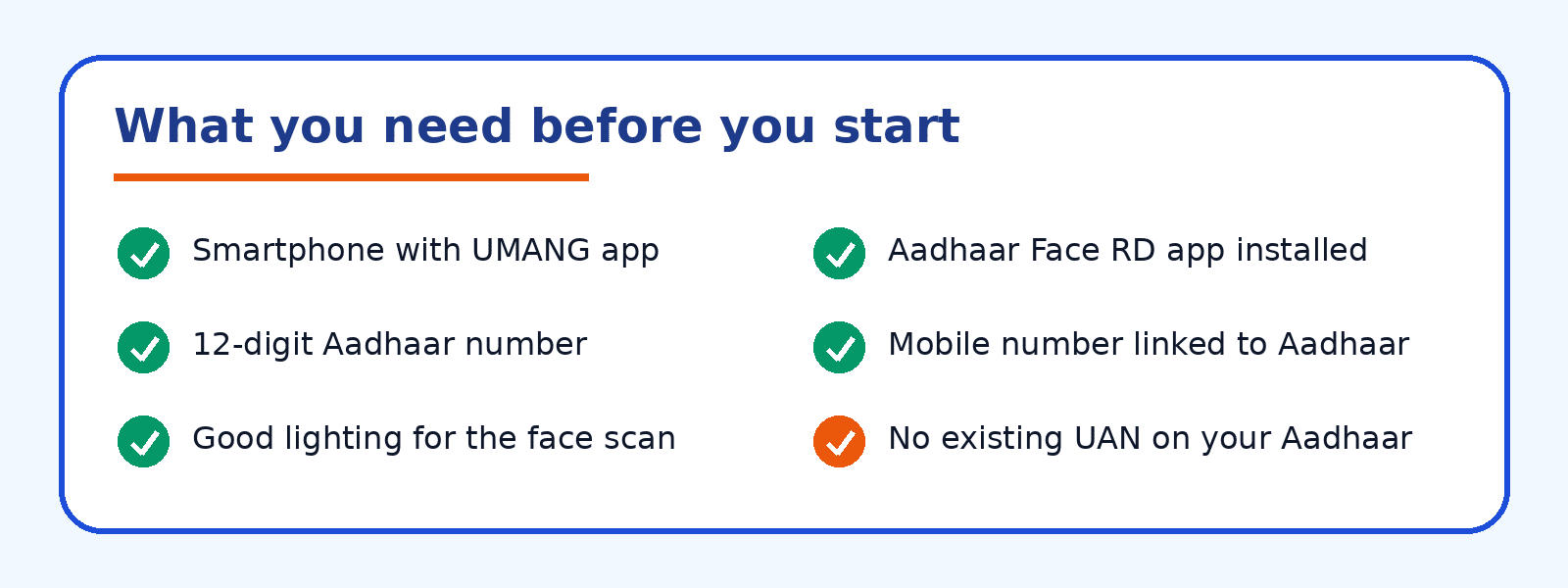
| What you need | Why it is needed |
|---|---|
| UMANG app | The gateway to EPFO services on mobile |
| Aadhaar Face RD app | UIDAI app that runs the live face scan |
| 12-digit Aadhaar number | Source of your verified KYC details |
| Aadhaar-linked mobile number | Receives the OTP and your UAN by SMS |
| Good lighting | Helps the face scan pass on the first try |
Step-by-step: generate UAN in UMANG
Here is the full flow. Follow it in order and you will have your UAN before your tea goes cold.
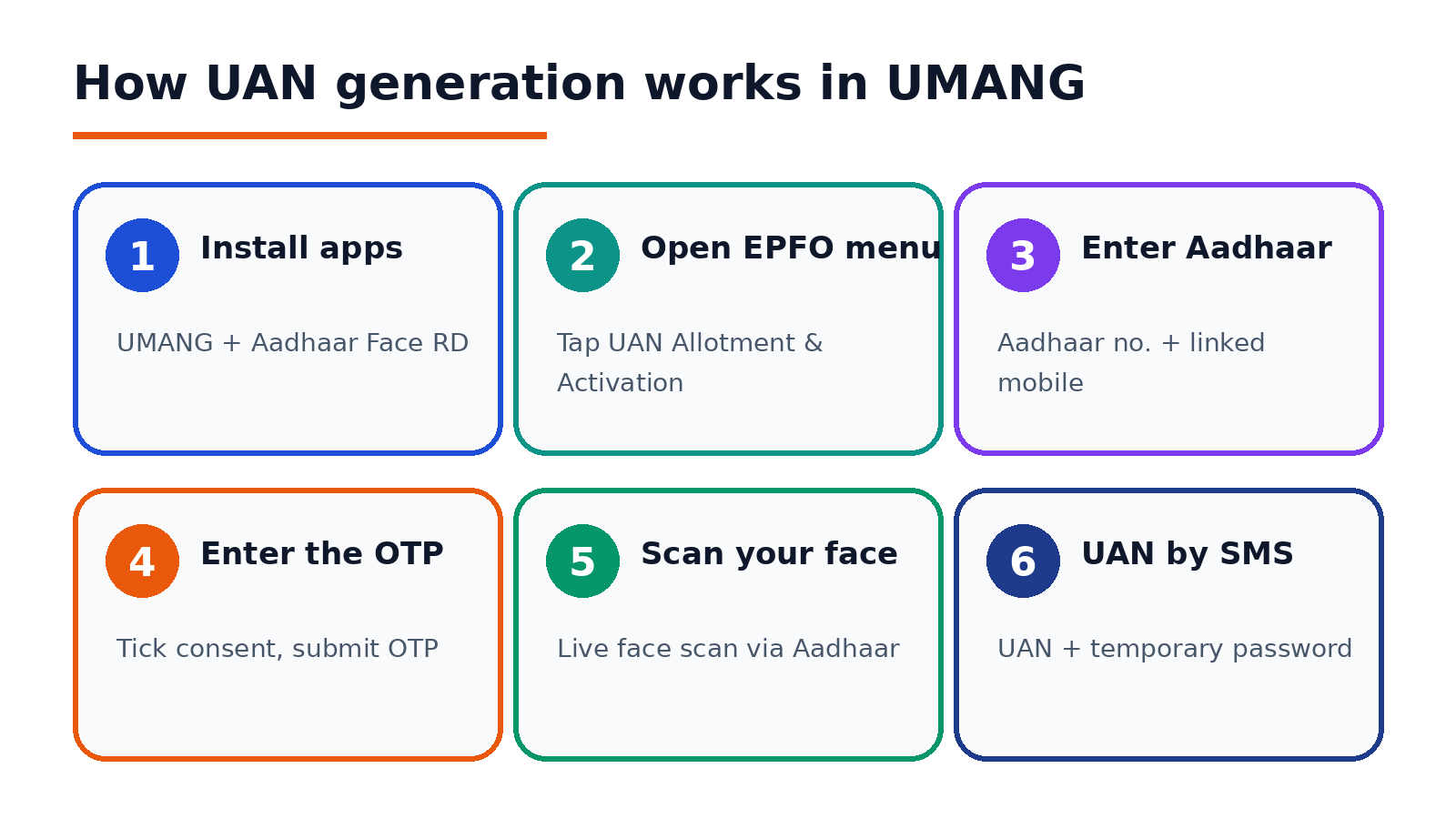
Step 1: Install both apps
From the Play Store or App Store, install the UMANG app and the Aadhaar Face RD app. You need both. The Face RD app does not need a login, it just has to be present so UMANG can trigger the scan.
Step 2: Open EPFO and pick UAN Allotment and Activation
Launch UMANG, register or log in with your mobile number, then search for EPFO. Inside the EPFO section, tap UAN Allotment and Activation. This single option both creates a new UAN and activates it.
Step 3: Enter your Aadhaar and mobile number
Type in your 12-digit Aadhaar number and your Aadhaar-linked mobile number. Tick the consent checkbox that lets EPFO validate your details against the Aadhaar database. Accuracy matters here, so double-check every digit before you move on.
Step 4: Verify with OTP
Tap to send the OTP, then enter the one-time password that lands on your Aadhaar-linked mobile. The system now checks whether your Aadhaar is already tied to a UAN. If it is, you will be told, and you should activate that existing UAN instead of making a new one. If it is not, you move straight to the face scan.
Step 5: Complete the face authentication
UMANG calls the Aadhaar Face RD app to run a live scan. Hold the phone steady, keep a neutral expression, and stay in even light with your face inside the on-screen frame. Once your face matches the biometric record in Aadhaar, EPFO pulls your verified name, date of birth, gender and photo automatically.
Step 6: Receive your UAN
That is it. EPFO generates your brand-new UAN on the spot and sends it to you by SMS, followed by a temporary password for your first login. No paperwork, no office, no waiting on HR.
What to do after your UAN is generated
Getting the number is only half the job. A few small steps lock everything in.
- Log in and change your password. Go to the EPFO member portal at member.epfindia.gov.in, sign in with your UAN and the temporary password, then set a strong password of your own.
- Download your e-UAN card. You can pull a PDF of your e-UAN card and hand it to your employer so they can link your PF account.
- Share the UAN with your employer. Do this before your first PF deduction so your contributions map correctly.
- Finish e-KYC and e-nomination. Complete these once the UAN is active to keep claims and transfers smooth later.
One UAN for life. Never generate a second UAN. If you already worked somewhere registered under EPFO, you likely already have one, so activate it rather than creating a duplicate.
Common errors and quick fixes
If something stalls, it is almost always one of these. Here is how to clear each one.
| Problem | Likely cause | Fix |
|---|---|---|
| OTP never arrives | Mobile not linked to Aadhaar | Update your mobile in Aadhaar at a UIDAI centre, then retry |
| Face scan keeps failing | Poor light or shaky frame | Face a window, hold steady, keep a neutral expression |
| Face RD app not found | App not installed | Install the Aadhaar Face RD app, then reopen UMANG |
| UAN already exists message | Aadhaar already linked to a UAN | Use the activation flow for your existing UAN, do not make a new one |
Who cannot use this method
The UMANG face-authentication route is mandatory for almost everyone, but EPFO carves out a few exceptions. Citizens of Nepal and Bhutan, and International Workers, fall outside this flow and are handled separately. If you are in one of those categories, check with your employer or EPFO directly for the correct process.
Official EPFO contacts
When in doubt, go to the source rather than a random link. These are the official EPFO points of contact.
| Channel | Detail |
|---|---|
| EPFO member portal | member.epfindia.gov.in |
| Toll-free helpline | 1800-118-005 |
| EPFO email | helpdesk@epfindia.gov.in |
| In-app help | UMANG Helpdesk inside the app |
About this guide
Written by Anup V, who builds and maintains education and how-to resources covering Indian government and EPFO services. This walkthrough reflects the live UMANG flow and the current EPFO rule that took effect on 1 August 2025. Procedures can change, so always confirm against the official EPFO sources below before acting.
Primary sources
- EPFO circular on mandatory UAN allotment and activation through UMANG using Face Authentication, dated 30 July 2025
- EPFO member portal, member.epfindia.gov.in
- UMANG user manual for UAN services
TLDR
- Since 1 August 2025, you generate your own UAN in the UMANG app, employers no longer do it.
- You need the UMANG app, the Aadhaar Face RD app, your Aadhaar number and your Aadhaar-linked mobile.
- Path: EPFO services, then UAN Allotment and Activation, enter Aadhaar and mobile, verify OTP, do the face scan.
- Your UAN and a temporary password arrive by SMS in minutes.
- Log in at member.epfindia.gov.in, change the password, download your e-UAN card, and never create a second UAN.
