
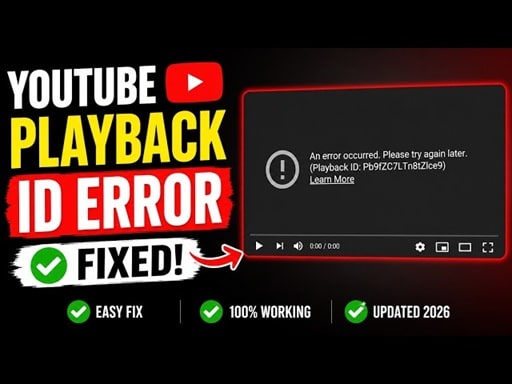
Seeing the YouTube “An error occurred. Playback ID” message? Here are proven fixes for Android, Smart TV and iPhone, plus expert tips to stop it returning.
Few things are as frustrating as settling in to watch a video and being greeted by the dreaded message: “An error occurred. Please try again later. (Playback ID: xxxxxxxx)”. If YouTube keeps throwing this error on your Android phone, Smart TV, or iPhone, the good news is that it’s almost always fixable in a few minutes.
In this guide I’ll walk you through why this error happens and the exact step-by-step fixes for each device, along with a few expert tips I’ve learned from troubleshooting this issue dozens of times.
What Causes the “An Error Occurred. Playback ID” Error?
This is a generic playback error, which means YouTube couldn’t load the video stream for one of several reasons. Here are the most common culprits:
| Cause | How Likely | Quick Indicator |
|---|---|---|
| Poor or unstable internet connection | Very High | Other sites/apps also slow |
| Corrupted app cache or cookies | High | Error only in app, not browser |
| Outdated YouTube app or OS | Medium | Update available in store |
| Incorrect date & time settings | Medium | Clock is wrong on device |
| VPN, proxy, or DNS issues | Medium | VPN is switched on |
| Account or sign-in glitch | Low | Works when signed out |
Quick Universal Fixes (Try These First)
- Reload the video — refresh or close and reopen the app.
- Restart your device — clears temporary memory glitches.
- Restart your router — unplug for 30 seconds, then power back on.
- Switch networks — try mobile data instead of Wi-Fi (or vice versa).
- Disable VPN/proxy — these often break video streaming.
- Check date & time — set it to automatic.
Also Read : Erro 4021 MEO: Como Resolver o Ecrã Azul (Guia 2026)
How to Fix the Playback ID Error on Android
Android gives you the most control, so this is usually the easiest device to fix. Clearing the app cache resolves it the majority of the time.
| Step | Action |
|---|---|
| 1 | Open Settings → Apps → YouTube |
| 2 | Tap Storage → Clear Cache |
| 3 | Still failing? Tap Clear Data (you’ll need to sign in again) |
| 4 | Update YouTube in the Play Store |
| 5 | Clear the Play Store cache too, then reboot |
How to Fix the Playback ID Error on iPhone
iOS doesn’t let you clear an app’s cache directly, so the trick is to offload or reinstall the app instead.
- Force close YouTube — swipe it away from the app switcher.
- Offload the app — go to Settings → General → iPhone Storage → YouTube → Offload App, then reinstall it. This clears the cache without losing settings.
- Update YouTube in the App Store.
- Reset network settings — Settings → General → Transfer or Reset iPhone → Reset → Reset Network Settings (you’ll re-enter Wi-Fi passwords).
- Delete and reinstall the app if the error persists.
How to Fix the Playback ID Error on TV (Smart TV, Android TV, Fire TV, Apple TV)
| Platform | Recommended Fix |
|---|---|
| All TVs | Power cycle: turn off, unplug from the wall for 60 seconds, plug back in |
| Android TV / Google TV | Settings → Apps → YouTube → Clear Cache / Clear Data |
| Fire TV | Settings → Applications → Manage Apps → YouTube → Clear Cache |
| Apple TV | Delete the YouTube app and reinstall it from the App Store |
| Samsung / LG / Roku | Remove and re-add the app, then check for a system software update |
On every TV platform, also check for a system firmware update and make sure the router isn’t too far away — weak Wi-Fi is the number one cause of this error on televisions.
Advanced Fix: Change Your DNS
If the error follows you across multiple devices on the same network, your ISP’s DNS may be the problem. Switching to a public DNS often clears it instantly.
| DNS Provider | Primary | Secondary |
|---|---|---|
| 8.8.8.8 | 8.8.4.4 | |
| Cloudflare | 1.1.1.1 | 1.0.0.1 |
You can enter these in your device’s Wi-Fi settings (under the network’s advanced/IP settings) or directly in your router for a whole-home fix.
My Take: Which Fix Actually Works Most Often?
In my experience troubleshooting this error, the breakdown is fairly predictable. On phones, clearing the cache or reinstalling solves it roughly 8 out of 10 times. On TVs, it’s almost always a power cycle or a weak Wi-Fi signal. And when the error appears on every device at once, the cause is your network — not YouTube — so go straight to the router and DNS fixes.
My honest opinion? Don’t waste time uninstalling everything first. Spend two minutes checking your connection and clearing the cache. That covers the vast majority of cases, and you’ll avoid the hassle of signing back into all your devices.
Frequently Asked Questions
Why does YouTube say “An error occurred” only on some videos?
That usually points to a content or regional issue with that specific video (it may be blocked, private, or restricted in your country) rather than a problem with your device.
Does this error mean my account is banned?
No. The Playback ID error is a streaming/loading error, not an account penalty. If you can sign in and browse, your account is fine.
Will clearing cache delete my subscriptions or history?
No. Subscriptions, history, and playlists are stored on your Google account in the cloud, not in the local app cache.
Final Thoughts
The “An error occurred. Playback ID” message looks alarming, but it’s rarely serious. Start with the universal fixes, then follow the steps for your specific device — Android, iPhone, or TV. In most cases you’ll be back to watching within a couple of minutes.
Did one of these fixes work for you? Let us know in the comments which device you were on and which step solved it.

Pingback: Fastest Way to Fix the Error STATUS_ACCESS_VIOLATION